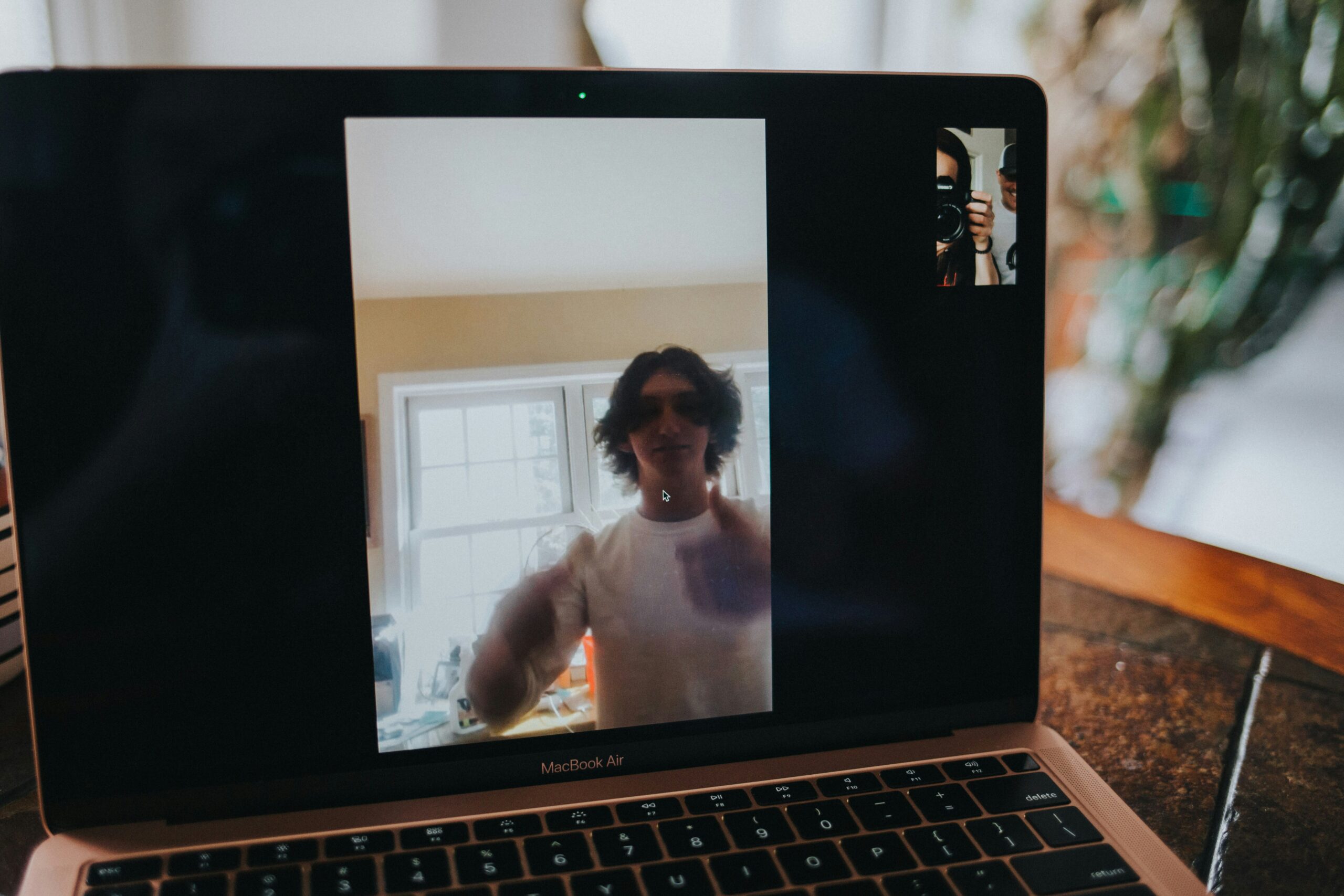
Creating engaging videos on a Mac has never been easier. Whether you are a content creator, educator, professional, or student, combining screen recording with FaceCam can dramatically improve how you communicate ideas. From tutorials and online classes to presentations and product demos, Facecam and screen recording tools help you connect with your audience more personally and effectively.
This guide walks you through everything you need to know to master screen and facecam recording on macOS, from built-in options to professional tools and best practices.
Why Combine Facecam and Screen Recording?
Using both your screen and FaceCam creates a more engaging and trustworthy experience. Viewers can see your expressions, follow your explanations, and stay focused for longer periods. This format is especially useful for:
- Online teaching and virtual training
- YouTube tutorials and tech reviews
- Business presentations and walkthroughs
- Software demos and product explainers
- Remote collaboration and feedback
Facecam adds a human touch that simple screen recordings often lack.
Built-In Screen Recording Options on macOS
macOS includes native tools that allow basic screen recording.
QuickTime Player
QuickTime Player lets you record your screen easily:
- Open QuickTime Player
- Select File > New Screen Recording
- Choose full screen or selected portion
- Select microphone input
- Start recording
While QuickTime is reliable and free, it does not support built-in facecam overlays, which limits its usefulness for modern content creation.
Using OBS Studio for Facecam and Screen Recording
OBS Studio (Open Broadcaster Software) is one of the most popular free tools for Mac users.
Why Choose OBS?
- Free and open-source
- Supports facecam + screen recording
- Highly customizable layouts
- Professional-grade recording quality
Basic Setup Steps
- Install OBS Studio for macOS
- Add a Display Capture source
- Add a Video Capture Device for your webcam
- Resize and position your facecam overlay
- Select the microphone and audio sources
- Start recording
OBS offers flexibility, but beginners may need time to learn its interface.
Best Facecam and Screen Recorder Apps for Mac
If you prefer simplicity, several dedicated Mac apps offer built-in FaceCam features.
Screen Recording Software Options
- Tools with drag-and-drop facecam overlays
- Built-in editing features
- One-click export options
These tools are ideal for users who want professional results without complex configuration.
Choosing the Right Webcam and Microphone
Your recording quality depends heavily on hardware.
Webcam Tips
- Use HD or Full HD webcams
- Position camera at eye level
- Ensure good lighting from the front
Microphone Tips
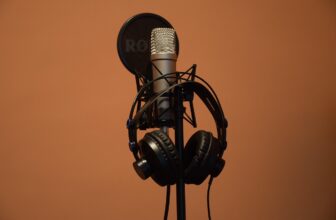
- External microphones offer clearer audio
- Avoid built-in laptop mics when possible
- Record in a quiet environment
Clear audio is often more important than video quality.
Lighting and Framing for Facecam Videos
Proper lighting can instantly improve your recordings.
- Use natural light from a window
- Avoid strong backlighting
- Keep background clean and distraction-free
Frame your face slightly off-center so it doesn’t block important screen content.
Best Screen Recording Settings for Mac
To achieve high-quality recordings:
- Resolution: 1080p for most use cases
- Frame rate: 30–60 FPS
- Audio: Separate system and microphone tracks
- File format: MP4 or MOV
Higher settings improve quality but increase file size.
Recording Tips for Professional Results
- Prepare a script or outline
- Close unnecessary apps and notifications
- Do a short test recording
- Speak clearly and confidently
- Use cursor highlights or zoom effects if available
Preparation saves time during editing.
Editing Your Facecam and Screen Recordings
After recording, basic editing improves clarity.
- Trim mistakes and pauses
- Adjust audio levels
- Add captions or annotations
- Insert intro and outro clips
Even simple edits can make your video look polished.
Common Mistakes to Avoid
- Recording without checking audio
- Poor lighting and background clutter
- Facecam blocking key screen areas
- Overusing effects or transitions
Keep your setup simple and clean.
Who Can Benefit Most from Facecam Screen Recording?
- YouTubers and streamers
- Teachers and trainers
- Software developers
- Business professionals
- Students creating presentations
This format works across industries and skill levels.
Final Thoughts
Mastering FaceCam and screen recording on Mac empowers you to create clear, engaging, and professional videos. Whether you use built-in tools, OBS Studio, or dedicated screen recording software, the key is choosing a setup that matches your skill level and goals.
With the right tools, proper lighting, good audio, and a little practice, your Mac can become a powerful content creation studio, helping you communicate ideas with confidence and clarity.