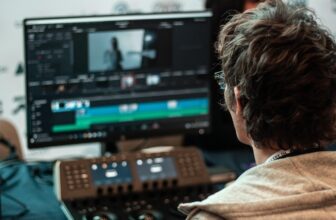
Screen recording has become an essential tool in today’s digital world. From creating tutorials and online classes to recording meetings, presentations, and gameplay, screen recording helps capture exactly what happens on your screen. The good news is that almost every modern device now supports screen recording either through built-in features or simple third-party apps.
This comprehensive guide explains how to screen record on all major devices, including smartphones, tablets, computers, and laptops.
What Is Screen Recording and Why Is It Useful?
Screen recording is the process of capturing real-time activity on a device’s screen, often with audio narration. It is widely used for:
- Online teaching and tutorials
- Business presentations and demos
- Recording video calls and meetings
- Technical support and troubleshooting
- Content creation and gaming
With the right tools, anyone can screen record without technical expertise.
How to Screen Record on Android Devices
Most Android smartphones and tablets come with a built-in screen recorder.
Using Built-In Screen Recorder
- Swipe down to open the Quick Settings menu
- Look for the “Screen Recorder” option
- Tap it and choose audio and touch settings
- Press “Start” to begin recording
The recording will be saved automatically in the gallery.
Using Third-Party Apps
If your device doesn’t have a built-in recorder, apps from the Play Store provide advanced features such as editing, annotations, and live streaming.
How to Screen Record on iPhone and iPad
Apple devices include a powerful built-in screen recording feature.
Steps to Screen Record on iOS
- Go to Settings and add Screen Recording to Control Center
- Swipe down to open Control Center
- Tap the Screen Recording icon
- Press and hold to enable microphone audio if needed
The recording is saved directly to the Photos app.
How to Screen Record on Windows Computers
Windows offers both built-in and third-party options for screen recording.
Using Xbox Game Bar
- Press Windows + G to open the Game Bar
- Click the Record button
- Start recording your screen
This tool works best for apps and presentations but may not record the entire desktop.
Using Built-In Tools and Software
For full-screen recording, third-party software offers better control, higher resolution, and editing options.
How to Screen Record on Mac (macOS)
macOS includes excellent built-in screen recording tools.
Using Screenshot Toolbar
- Press Command + Shift + 5
- Choose “Record Entire Screen” or “Record Selected Portion”
- Click Record to start
The video is saved automatically and can be edited using built-in tools.
How to Screen Record on Linux Systems
Linux users have access to open-source screen recording tools.
Using Built-In Desktop Tools
Some Linux distributions include basic screen recording features accessible through keyboard shortcuts.
Using Open-Source Software
Linux screen recording software supports advanced features like frame rate control, audio capture, and multiple video formats.
How to Screen Record on Chromebooks
Chromebooks offer built-in screen recording features.
Steps to Record Screen on Chromebook
- Press Ctrl + Shift + Show Windows
- Select Screen Record
- Choose full screen, window, or partial screen
- Click Record
The video is saved in the Files app.
How to Screen Record on Tablets and Other Devices
Tablets, smart TVs, and other devices often support screen recording through built-in tools or connected devices. Some require casting the screen to a computer where recording software is used.
Tips for High-Quality Screen Recording
To ensure professional-quality recordings:
- Close unnecessary apps to avoid notifications
- Use a stable internet connection
- Choose the correct resolution and frame rate
- Use a microphone for clear narration
- Test audio and video settings before recording
These steps improve clarity and viewer experience.
Common Screen Recording Issues and Solutions
No Audio in Recording
Ensure microphone or system audio is enabled before recording.
Lag or Low Quality
Lower the resolution or close background applications.
Storage Issues
Screen recordings can be large files—ensure enough storage space before recording.
Privacy and Legal Considerations
Always respect privacy when screen recording. Avoid recording sensitive information, private conversations, or copyrighted material without permission. Inform participants before recording meetings or calls.
Best Use Cases for Screen Recording
Screen recording is ideal for:
- Online courses and tutorials
- Software demonstrations
- Remote work collaboration
- Gaming and live streaming
- Customer support and training
Its versatility makes it a powerful communication tool.
Final Thoughts
Screen recording is now easier than ever, thanks to built-in tools and accessible software across all devices. Whether you’re using a smartphone, tablet, or computer, you can capture high-quality screen recordings with minimal effort.
By understanding the available options and following best practices, you can create clear, engaging screen recordings for any purpose. No matter your device, screen recording empowers you to share knowledge, ideas, and experiences effectively.